
WINDOWS · GOOGLE CHROME
Having issues downloading?
Follow these steps if Chrome pauses your PlanVerse setup download with an uncommon-file warning.
Start from the official Windows download on planverse.app. Chrome may show Suspicious download blocked for a file it does not commonly see downloaded.
Use the options below for the uncommon-download warning shown in the screenshots. If Chrome reports malware or a dangerous download, stop and contact support.
QUICKEST ROUTE
Try Microsoft Edge. It is already on your Windows PC and may download the installer without this warning. Firefox can show a similar warning, This file is not commonly downloaded, so Edge is worth trying from there too.
Open the download page in Microsoft Edge
Your browser asks before it opens Edge. If the button does nothing, open Edge from the Start menu and go to planverse.app/download. If Edge or Windows shows its own security warning, keep its protections enabled and contact support.
To keep the download in Chrome instead, use one of these options.
OPTION 1
Review this download in Chrome.
- On our download page, select Download for Windows.
- Open the download popup at the top right of Chrome. If it has closed, select Chrome’s Downloads icon. Find the setup file and select the arrow beside it to expand the warning.

The arrow opens the details for the blocked download. - Read the warning. If it says the file is not commonly downloaded, and you trust the installer you requested from our official page, you can choose Download suspicious file to keep it.
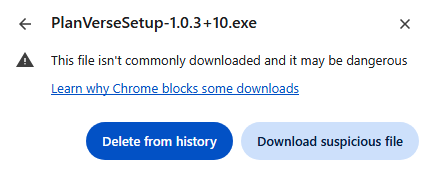
This choice continues the download despite the warning; it does not mean Chrome has verified the file is safe.
The screenshots show an example filename from version 1.0.3, build 10. Your download’s version and Chrome’s wording may differ.
OPTION 2 · OPTIONAL CHROME SETTING
Use Enhanced protection checks.
Chrome’s Enhanced protection can offer additional malware checks for suspicious downloads. Enabling it shares more browsing and download information with Google; review Google’s Safe Browsing privacy explanation before deciding.
- Open Chrome’s vertical three-dot menu at the top right, then select Settings.
- Choose Privacy and security in the left navigation, then Security.
- Under Safe Browsing, select Enhanced protection and confirm if Chrome asks.
- Return to our download page and select Download for Windows again. If Chrome offers to scan or send the file to Google for a check, follow that prompt and wait for the result.
Additional checks do not guarantee that Chrome will allow a download. Keep Safe Browsing enabled. If the check reports a problem or the download remains blocked, contact support with the exact message.
On a work or school computer, your administrator may manage these settings. Ask them for help if an option is unavailable.
AFTER THE DOWNLOAD
Run the setup file.
Once your trusted download has finished, open the downloaded PlanVerse setup .exe from Chrome’s Downloads list or your Downloads folder. Follow the installer’s prompts, then launch PlanVerse from the Start menu or desktop shortcut.
If Windows or your antivirus reports a security problem, keep its protections enabled and email support@planverse.app with the filename and exact warning. These instructions cover Chrome’s download prompt; further installation issues can be handled through Support.
More from Google: Why Chrome blocks some downloads and Choose your Safe Browsing protection level.