YOUR NEXT CHAPTER STARTS HERE
Bring PlanVerse to your desktop.
Download the app and explore without an account. Your financial data stays on your computer.
DESKTOP APP
Windows
64-bit Windows · .exe installer
Download for WindowsYour download is starting.
If Chrome shows Suspicious download blocked, try Microsoft Edge instead. It is already on your Windows PC and may download the installer without that warning.
If Firefox says This file is not commonly downloaded, try Microsoft Edge instead. It is already on your Windows PC and may download the installer without that warning.
Open this page in Microsoft Edge
Your browser asks before it opens Edge. Then select Download for Windows there.
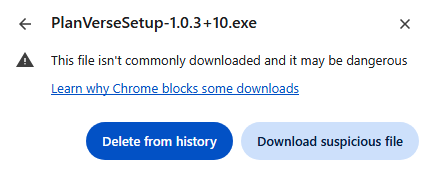
Or keep the download in Chrome +
- Open Chrome’s download popup and select the arrow next to the setup file.

- If the warning says the file isn’t commonly downloaded, and you trust this installer from our official page, select Download suspicious file to keep it.
Or keep the download in Firefox +
- Open Firefox’s Downloads panel and select the setup file to see the warning details.
- If the warning says the file is not commonly downloaded, and you trust this installer from our official page, select Allow download to keep it.
Browsers show this warning for files they have not seen often; continuing does not mean your browser has verified the file. If it reports malware or a dangerous download, stop and contact support.
Having issues downloading?
- Version
- 1.0.3 (build 11)
- Released
- November 16, 2026
DESKTOP APP
macOS
macOS 12.4 or later · .dmg installer
Download for macOS- Version
- 1.0.3 (build 11)
- Released
- November 16, 2026
Published by Taconic System LLC. The app includes anonymous usage analytics. The app does not send your personal financial data to us.
Read the Terms of Service and Privacy Policy before installing. See uninstall instructions for removing the app and managing retained local data.
What’s new in PlanVerse 1.0.3
EVERY PLANNING FEATURE. FREE TO EXPLORE.
Explore first. Save with Premium.
No account or payment is needed to try the planning tools. Without Premium, changes stay in memory and are lost when you exit. Previously saved local data remains readable.
Premium adds saving your plans, financial data, and settings locally, encrypted on your computer, plus exporting backups with optional password protection. Choose $72/year or $7/month, in US dollars.
To subscribe, open Settings > Subscription in the app and select Subscribe. Create an account and confirm your email if needed, then complete secure checkout in your browser. Already subscribed? Sign in from the account button to restore Premium on this computer.
Subscriptions renew automatically until canceled. Subscribe in the desktop app; checkout shows the final price, any applicable taxes, and billing terms. Manage cancellation from the account button or Settings > Subscription. Read the subscription terms.
A FEW SIMPLE STEPS
Download. Set up.
Start asking.
Begin with your household and current finances. Then ask a focused question or build a detailed plan.
Install on Windows
- Download the Windows installer.
- Open the downloaded .exe and follow the setup prompts.
- Launch the app from the Start menu or desktop shortcut.
Install on macOS
- Download and open the .dmg file.
- Drag the app into the Applications folder.
- Launch it from Applications.
YOUR FIRST PLANSet up your household in Settings > Household, add accounts in Current Financials, and open Find Answers. Saving data to disk or exporting a backup requires a signed-in account and active subscription. Without one, your work remains available only during the current session.
Read the getting-started FAQ Only run installers you obtain from the official download links. If installation fails or your system blocks the installer, see Support.